How to Export Apple Health Data & Workouts as a JSON or CSV File
Manual Export Guide
Export Apple Health Data
To export multiple data types at once, use Manual Export.
Navigate to the Export screen from the main navigation.
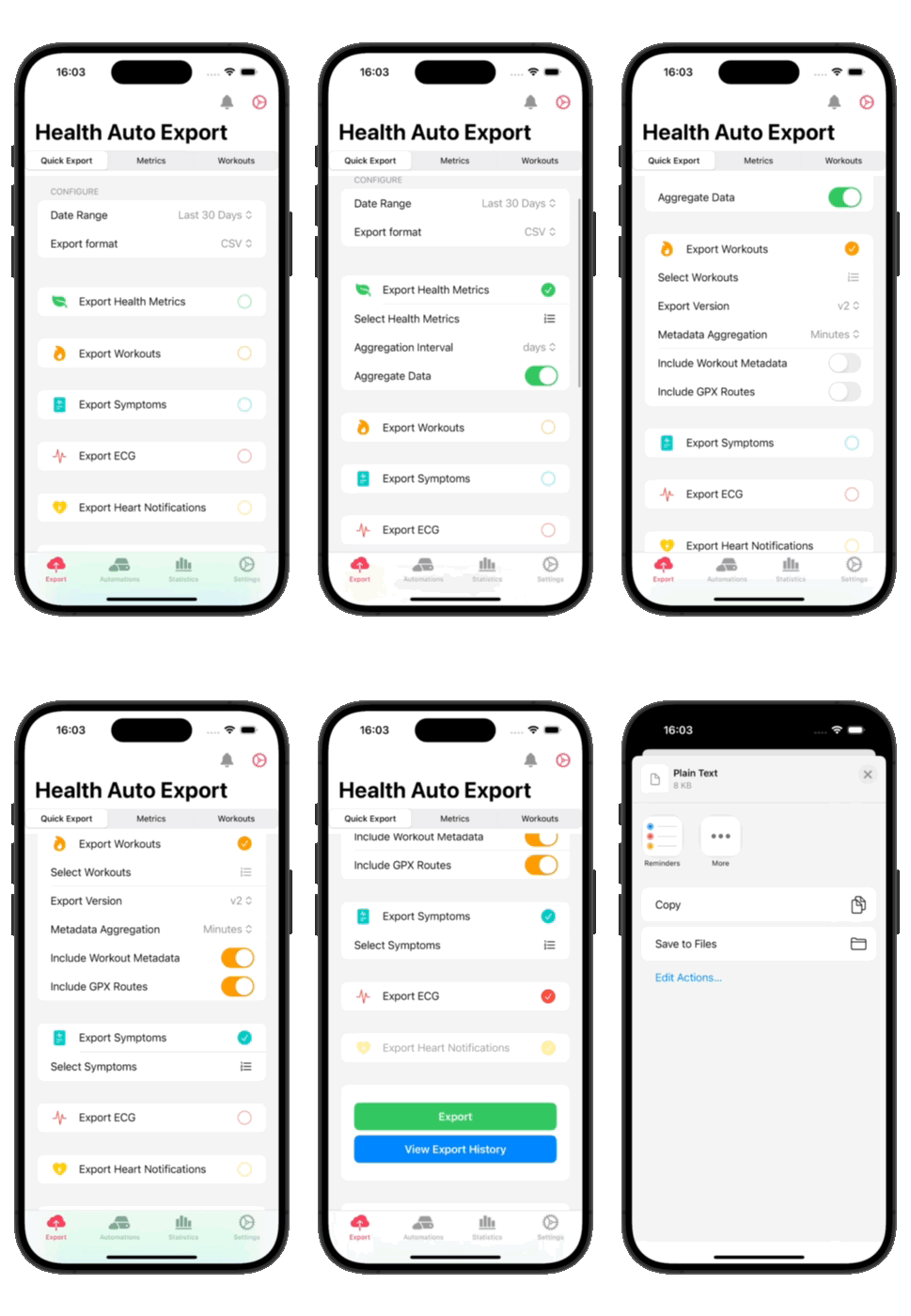
Configuration
Date Range
Select a Date Range preset, or select Custom to select your own start and end date for the export.
Available presets:
- Today
- Yesterday
- Last 7 Days
- Last 14 Days
- Last 30 Days
- Last 90 Days
- Custom (allows you to select specific start and end dates)
When Custom is selected, date pickers will appear allowing you to choose your specific start and end dates.
Export Format
Select an Export Format:
- CSV format allows you to view Apple Health data in Microsoft Excel, Numbers, or other compatible programs and is best for viewing data in a tabular interface.
- JSON format provides more detailed exports for some data types, such as AFib readings, sleep phases. JSON format is useful for tasks such as database storage and data analysis.
Export Version
Select an Export Version. Versioning allows transitioning between updated versions of the export at your own pace and minimizes breaking changes to workflows. The most current workout version is version 2.
Note: Export Version primarily affects workout data structure. Version 2 provides enhanced workout data with more detailed metadata options.
Performance Warning: Exporting to CSV with minute or second-level time grouping can take several minutes or cause performance issues. Consider using hour or day-level grouping for CSV exports, or use JSON format for more detailed exports.
Health Metrics
Enable Export Health Metrics
Toggle Export Health Metrics ON to include health metric data in your export.
Select Health Metrics
Select Health Metrics allows you to add/remove metrics included in the export file.
Tip: Removing health metrics that have no stored data, or that you may not be interested in, can improve processing time for exports.
Time Grouping
Select a Time Grouping interval. The interval controls how data is aggregated:
- Days - Groups data by day (recommended for most use cases)
- Hours - Groups data by hour
- Minutes - Groups data by minute
- Seconds - Groups data by second
- Weeks - Groups data by week
- Months - Groups data by month
- Years - Groups data by year
Minute and second-level aggregation will be the most detailed, however, these exports will take the longest as this will require more processing.
Processing time can be reduced by decreasing the total number of metrics selected for your export.
Summarize Data
Toggle Summarize Data ON or OFF.
Turning this setting OFF will provide disaggregated data where possible.
Note: Data is always aggregated if multiple metrics are selected when using CSV format.
Workouts
Enable Export Workouts
Toggle Export Workouts ON to include workout data in your export.
Select Workouts
Select Workouts to include all or specific workout types in the export.
Include GPX Routes
Toggle Include GPX Routes ON or OFF to have GPX route data for workouts included in the final export.
When enabled, a separate GPX file will be generated for each workout that has route data.
Include Workout Metrics
Toggle Include Workout Metrics ON or OFF to have relevant health metrics data attached to your workout data, such as heart rate readings, active calorie burn, step count, etc.
Note: Including workout metrics requires additional data lookups and can add processing time to the export.
Time Grouping (Workout Metrics)
When using Export Version 2 and Include Workout Metrics is enabled, you can select a Time Grouping interval for workout metadata:
- Minutes - Groups workout metrics by minute
- Seconds - Groups workout metrics by second
This controls how frequently health metrics are sampled and included within each workout.
Symptoms
Enable Export Symptoms
Toggle Export Symptoms ON to include symptom data in your export.
Select Symptoms
Select Symptoms to include all or specific symptom types in the export.
Cycle Tracking
Enable Export Cycle Tracking
Toggle Export Cycle Tracking ON to include cycle tracking data in your export.
Cycle tracking data includes menstrual flow, cervical mucus quality, basal body temperature, ovulation test results, and other cycle-related information.
Medications
Enable Export Medications
Toggle Export Medications ON to include medication data in your export.
Note: Medications export is available on iOS 26.0 and later.
Medication data includes medication names, dosages, scheduled times, and adherence information.
State of Mind
Enable Export State of Mind
Toggle Export State of Mind ON to include state of mind data in your export.
Note: State of Mind export is available on iOS 18.0 and later.
State of mind data includes mood entries, valence ratings, labels, and associations.
ECG
Enable Export ECG
Toggle Export ECG ON to include ECG samples in your export.
ECG data includes classification results, heart rate measurements, voltage measurements, and sampling frequency information.
Heart Rate Notifications
Enable Export Heart Notifications
Toggle Export Heart Notifications ON to include heart notification data in your export.
Heart rate notification data includes high and low heart rate events, thresholds, heart rate measurements during events, and heart rate variation data.
Run Export
Export
Tap the Export button to create the data file(s). Output will vary according to the selected export file format:
CSV Format:
- Separate files will be generated for each data type of health metrics, workouts, symptoms, ECG, heart rate notifications, state of mind, cycle tracking, and medications when enabled.
- If workout metrics are included, files are generated containing health metrics collected and associated with each workout.
- If GPX routes are included, a GPX file will be generated for each workout's route data.
JSON Format:
- One file will be generated containing all selected data types.
- If GPX routes are included, a GPX file will be generated for each workout's route data.
Sharing Export Files
When processing is complete, the file(s) can then be shared to another device using AirDrop, or third-party services and applications, such as Excel, WhatsApp, or Email.
If multiple files are generated, they will be automatically compressed into a ZIP file for easier sharing.
Export History
View Export History to access previously created files. Select a file to export it again or share it.
Export History maintains a record of all manual exports you've created, allowing you to easily access and re-share previous exports without needing to recreate them.
Tips and Best Practices
Reduce Processing Time:
- Select only the health metrics you need
- Use day or hour-level time grouping instead of minutes or seconds
- Disable workout metrics if you don't need detailed workout data
- Use shorter date ranges for faster exports
CSV vs JSON:
- Use CSV if you need to view data in spreadsheet applications
- Use JSON if you need detailed data structures or are importing into a database
- JSON format provides more detailed information for complex data types like sleep phases and AFib readings
Export Version:
- Use the highest version (most recent) for the most current data structure
- Use Version 1 if you have existing workflows that depend on the older format
Memory Considerations:
- Very large exports with minute or second-level aggregation may require significant device memory
- If you encounter memory warnings, try:
- Using a shorter date range
- Using a less granular aggregation interval (e.g., hours instead of minutes)
- Exporting data types separately in smaller batches
GPX Routes:
- GPX files are only generated for workouts that have route data
- GPX files can be imported into mapping applications or fitness tracking software